Install the MCP
The r3ne MCP server lets Claude (or any MCP client) see your graph, add and wire nodes, write shaders and snapshot the output while R3NE is running. This guide takes you from zero to your first prompt in about five minutes.
Before you start
- R3NE installed on a Mac with Apple silicon (macOS 14 or later).
Node.js 18or newer. Check in Terminal withnode -v. If it’s missing, install it from nodejs.org or withbrew install node.- An MCP client: Claude Code (recommended), Claude Desktop, or Codex.
Option A — Claude Code (recommended)
In Claude Code the MCP comes as a plugin, together with two skills that teach Claude how R3NE works (nodes, shaders, 3D scenes). Nothing to clone or build.
- Open Claude Code (in the terminal with
claude, or the Code tab of the Claude app). - Add the R3NE plugin marketplace:
- Install the plugin:
- Restart Claude Code so it starts the MCP server.
- Open R3NE. The MCP talks to the app on
localhost:19780, which is only up while R3NE is running. - Check the connection by asking:
Claude calls health and answers with the number of nodes and the frame rate of your open project.
/plugin marketplace update r3ne-app and restart Claude Code.Option B — Claude Desktop, Codex or another client
Other clients run the same server from a copy of the plugin repository. The server is already built, so there’s no npm install.
Download the repository and print the server’s path:
Copy the path it prints, for example /Users/you/r3ne-app/mcp-server/dist/index.mjs. Client configs don’t expand ~, so always use the full path.
Claude Desktop
- In Claude Desktop open
Settings → Developer → Edit Config. That opens~/Library/Application Support/Claude/claude_desktop_config.json. - Add the
r3neserver with your path (keep any servers you already have insidemcpServers): - Quit Claude Desktop completely (
⌘Q) and open it again. The r3ne tools show up in the tools menu of the chat.
Codex
Add this to ~/.codex/config.toml and start a new Codex session:
Updating
Then restart your client.
Your first prompt
With R3NE open, try:
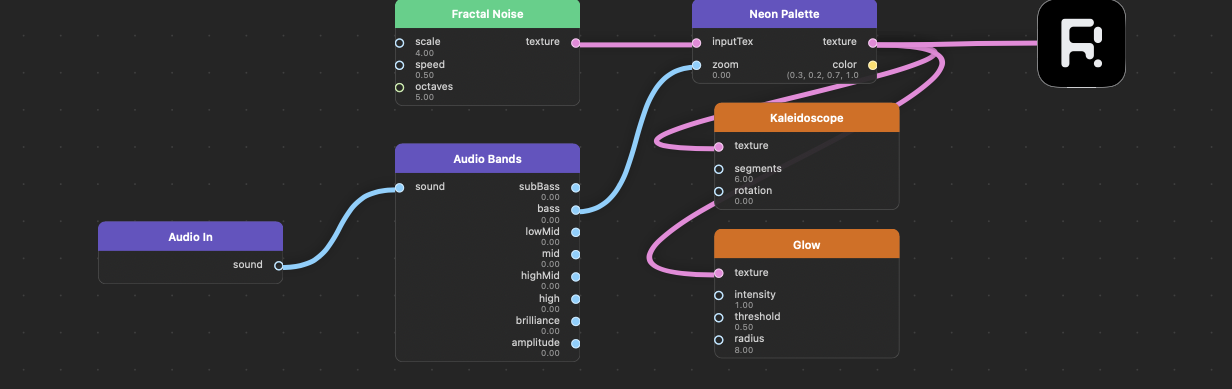
Nodes appear on the canvas as Claude works, arranged left to right with the Output on the right. Everything it does can be undone with ⌘Z.
Troubleshooting
| What you see | Fix |
|---|---|
| “R3NE app is not running” or “fetch failed” | Open R3NE and ask again. The MCP needs the app running. |
| The r3ne tools never appear | Restart the client after installing. In Claude Code, check /mcp; in Claude Desktop, check the path in the config file. |
node not found | Desktop apps don’t always see your shell’s PATH. Run which node and put that full path in "command" instead of node. |
| R3NE runs on another port | Set R3NE_API_PORT in the server’s env to the same port the app uses. |
For the full list of tools and what each one does, see MCP.